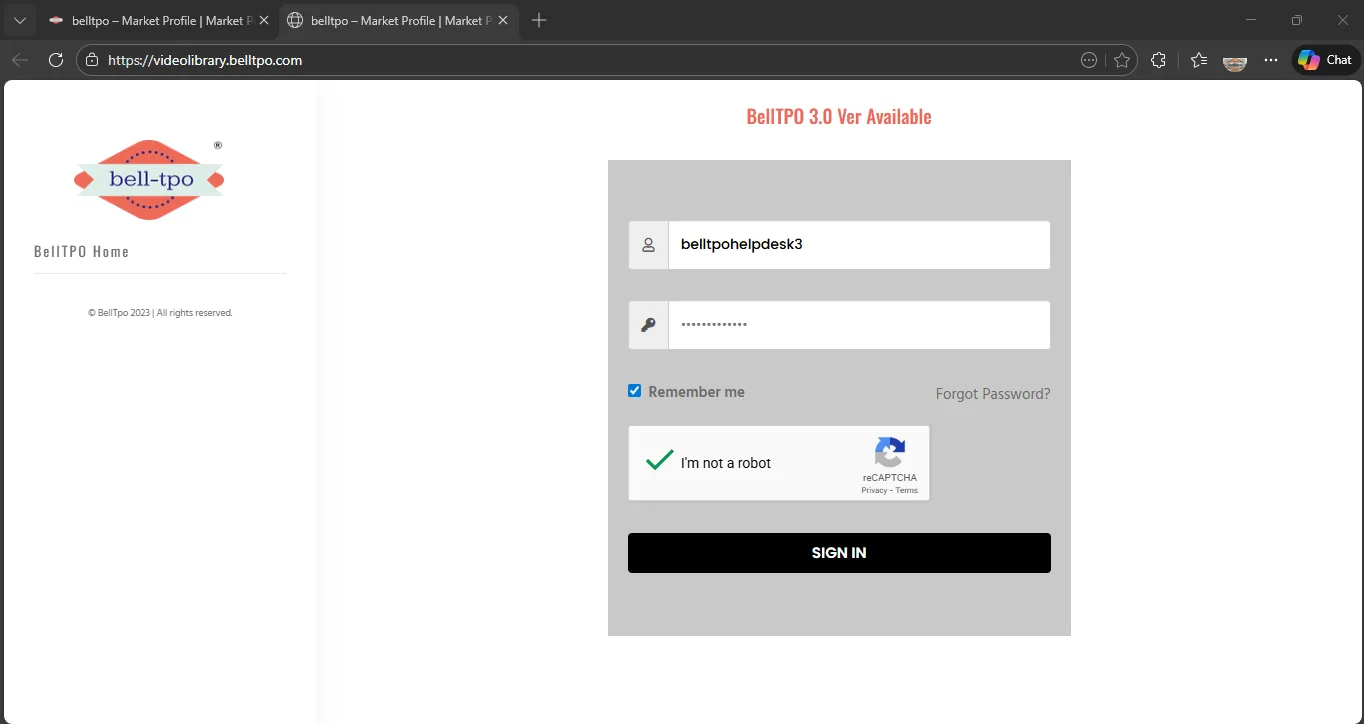
2. Login using your registered username and password, then click Sign In.
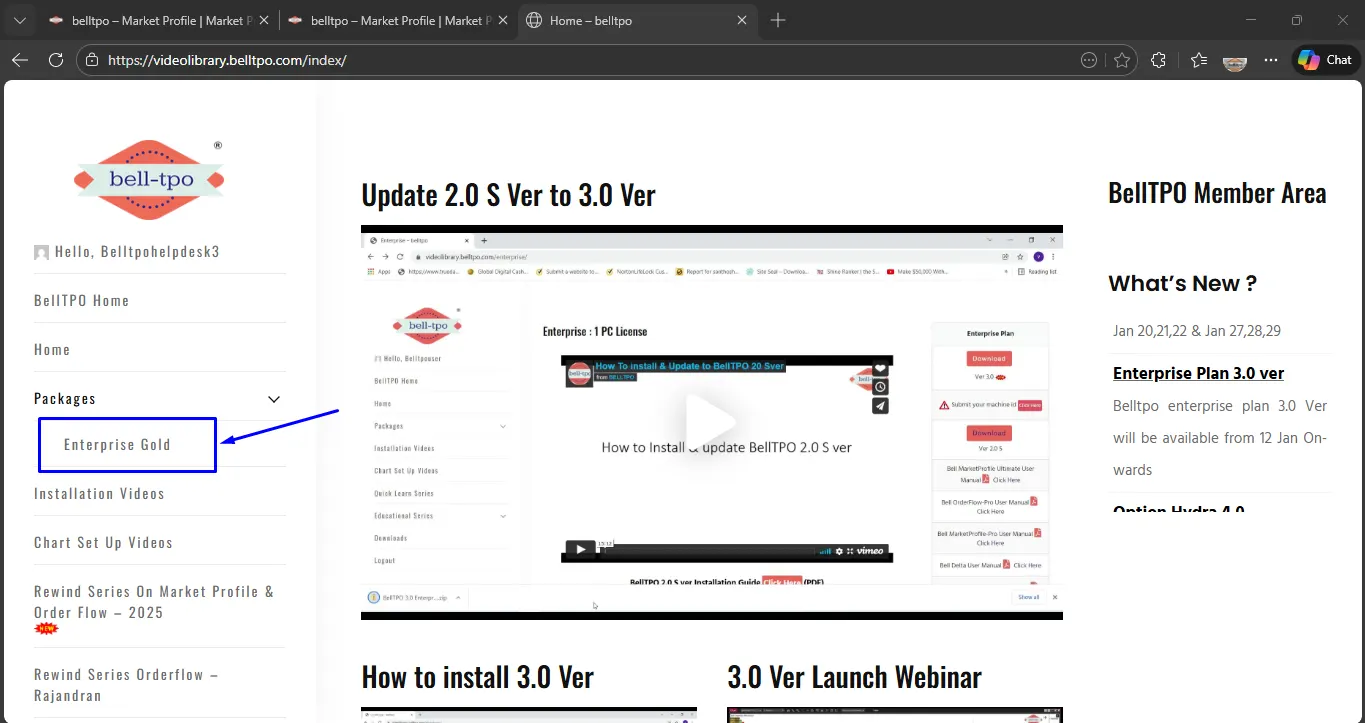
3. From the left-side menu, navigate to: Packages → Your Packages
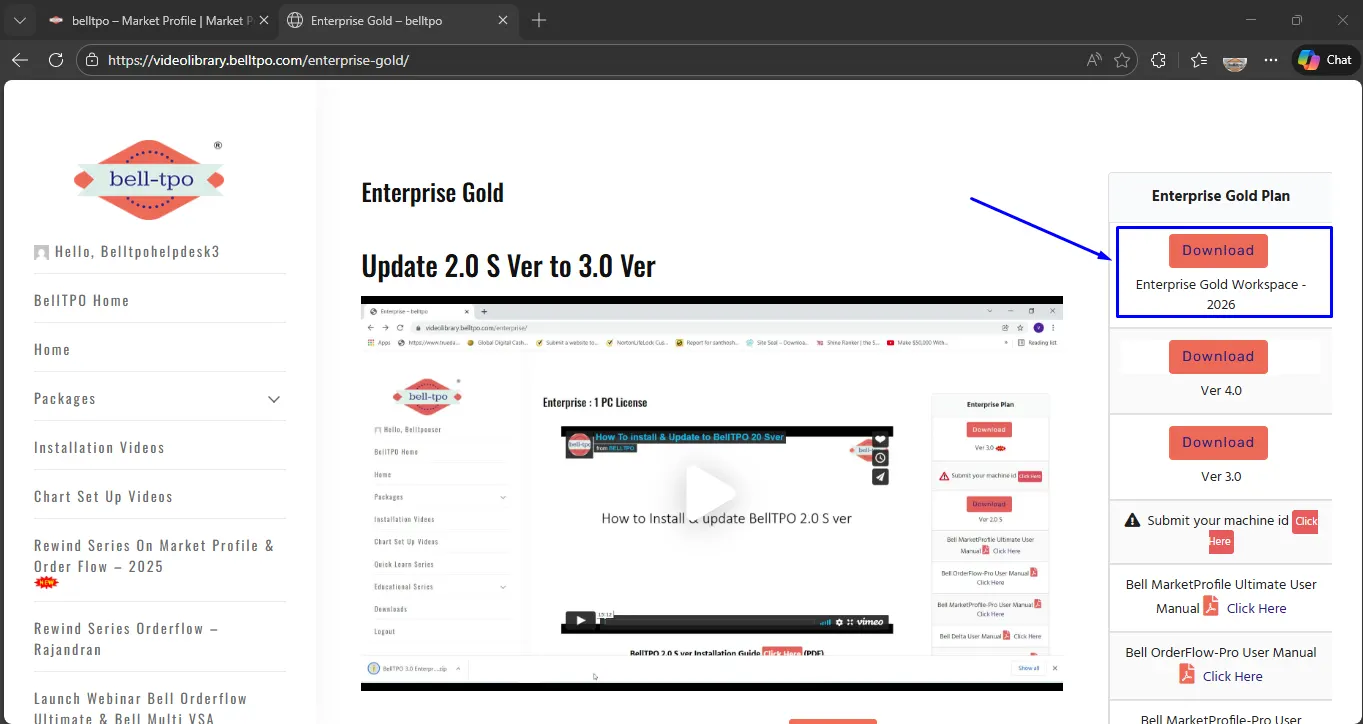
4. Click the Download button
Step-2 – Extract & Install Marker Tool
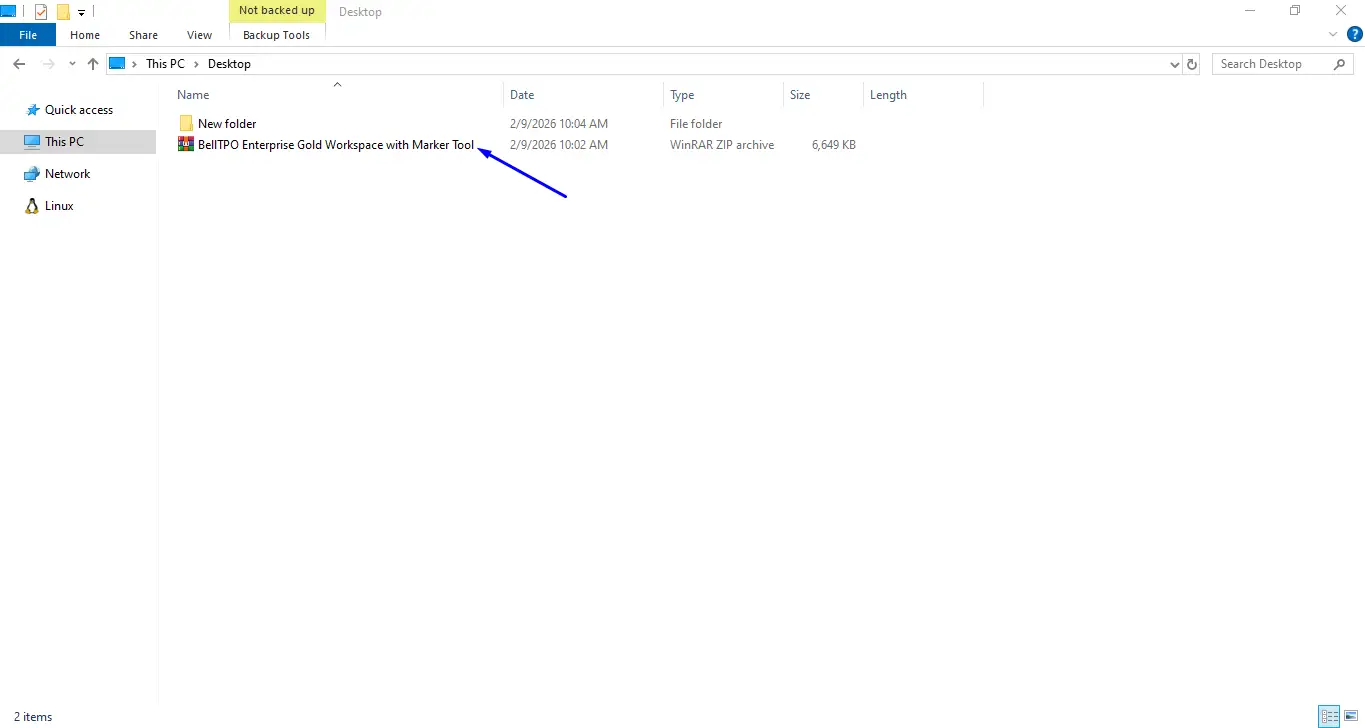
5. Locate the downloaded ZIP file in your Downloads or Desktop folder: BellTPO Workspace with Marker Tool.zip
6. Right-click the file and select Extract Here.
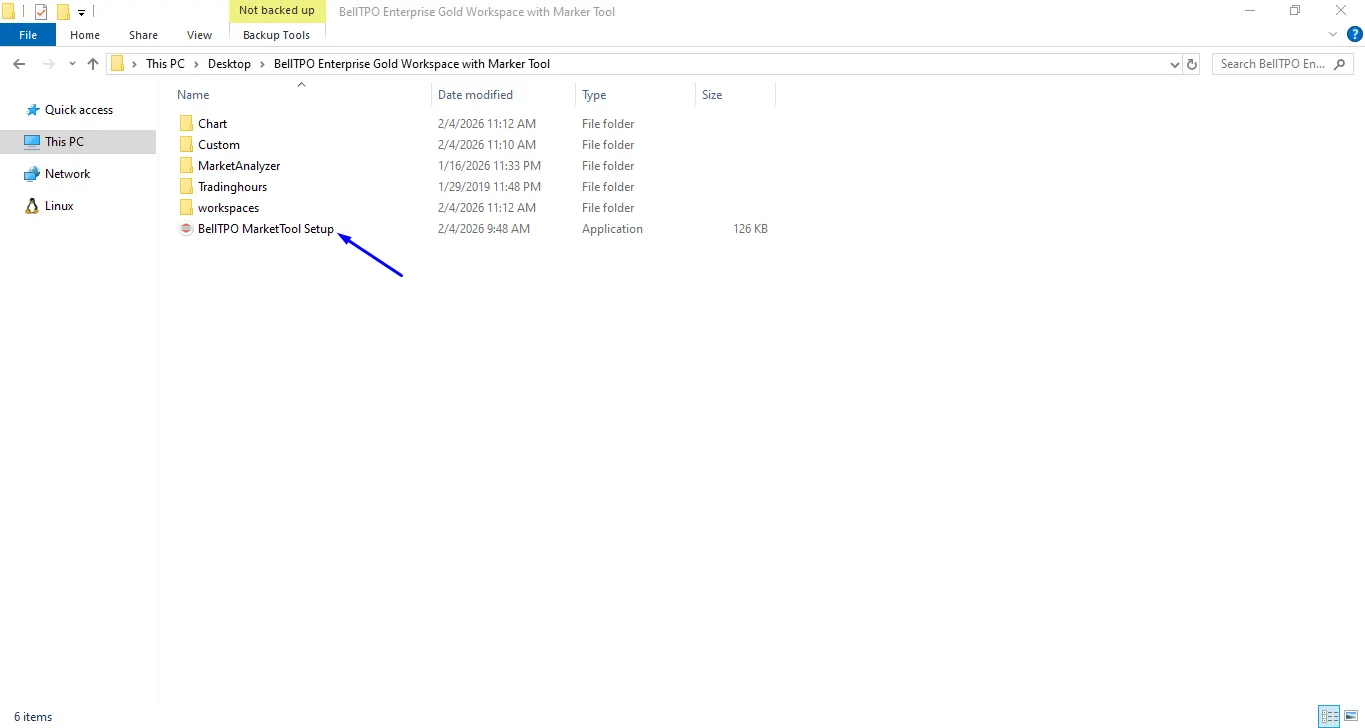
7. Open the extracted folder and double-click: BellTPO MarketTool Setup
Important Note: Before running the MarketTool setup, ensure that the NinjaTrader application is completely closed.
The Marker Tool is compatible only with the latest NinjaTrader login version (NinjaTrader 8.1.5.1 and above). Please ensure your Ninja Trader is updated before installation.
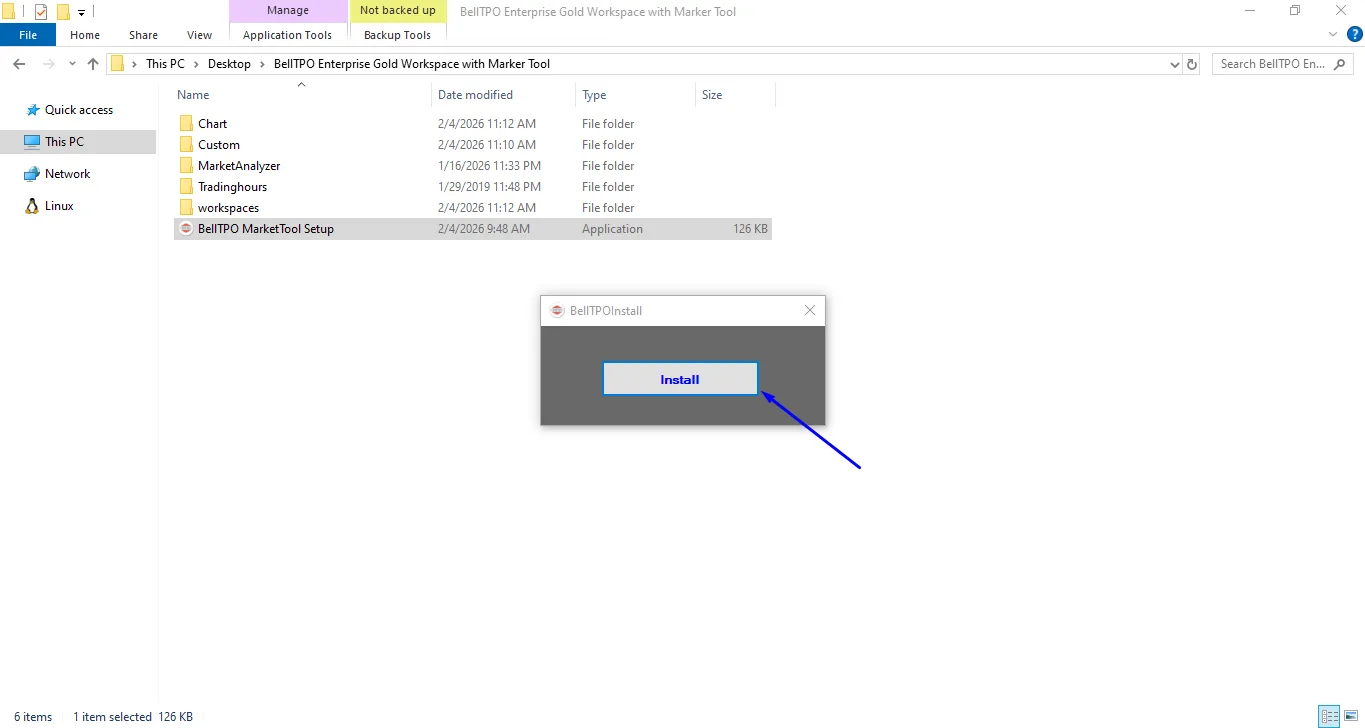
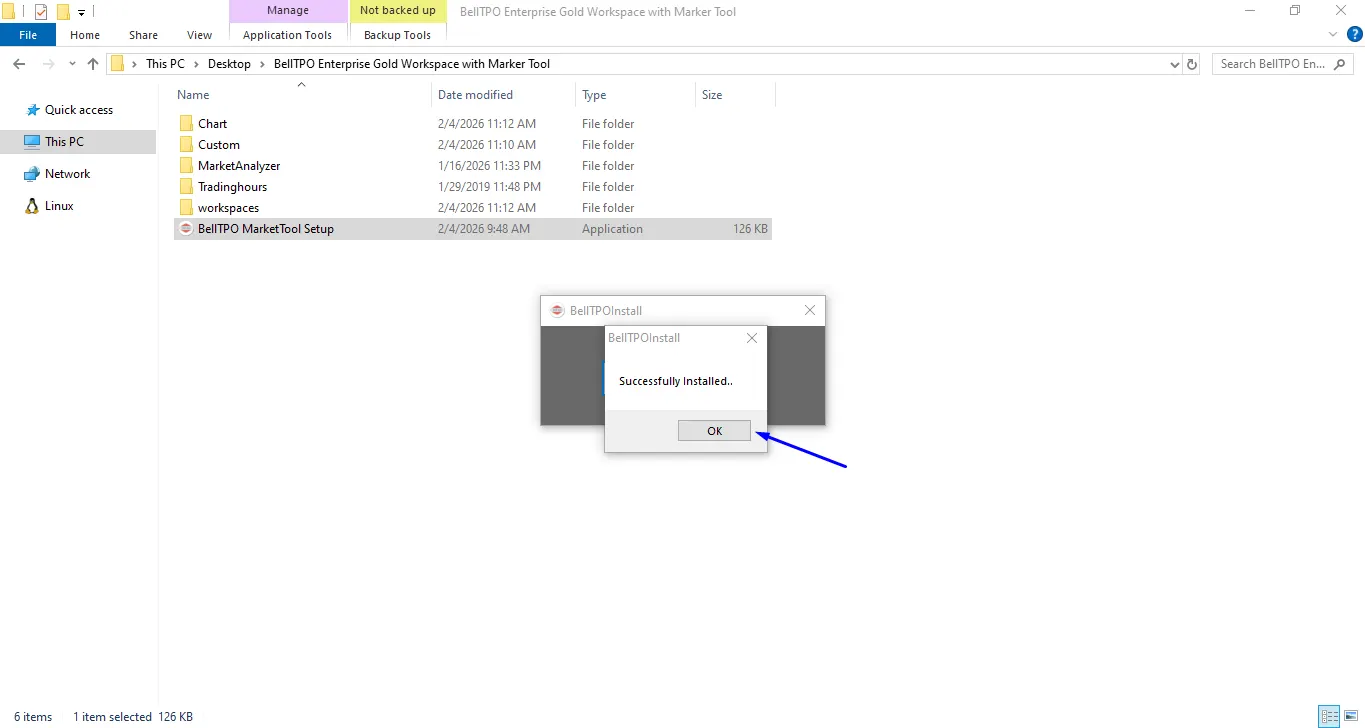
8. Click Install and wait until you see the confirmation message: Successfully Installed
Step-3 – Open NinjaTrader & Apply Tool
9. Open NinjaTrader.
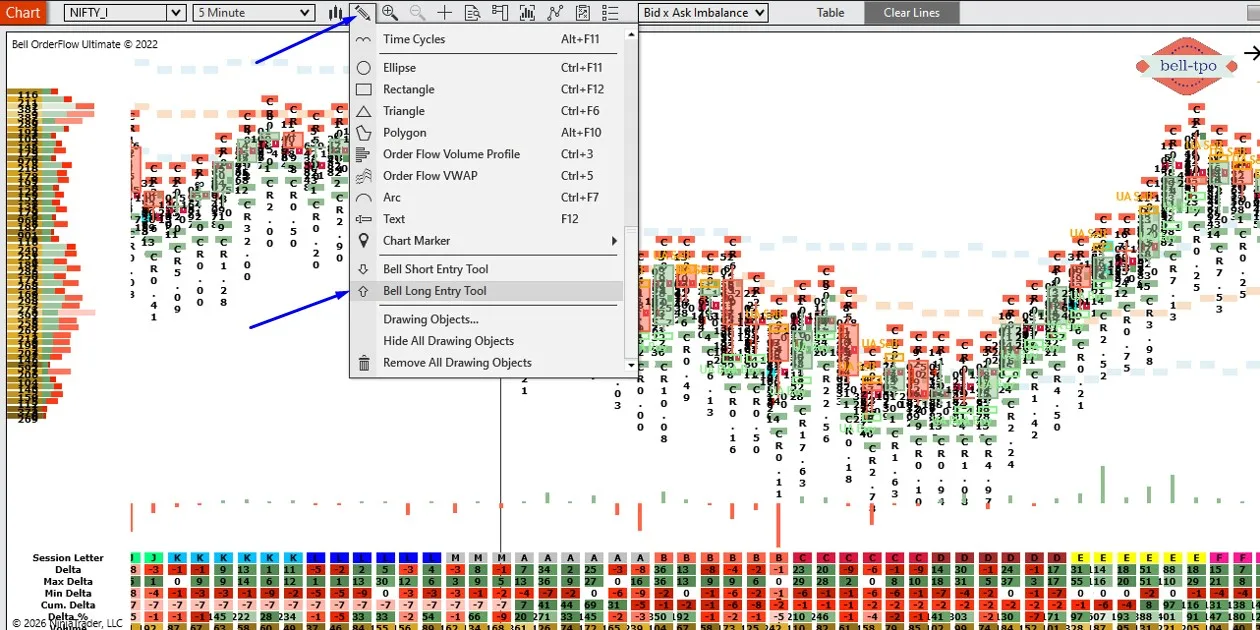
10. Open any trading chart, such as: NIFTY, BANKNIFTY
11. Click the Drawing Tools icon in the chart toolbar and select: Bell Long Entry Tool or Bell Short Entry Tool.
Step-4 – License Activation
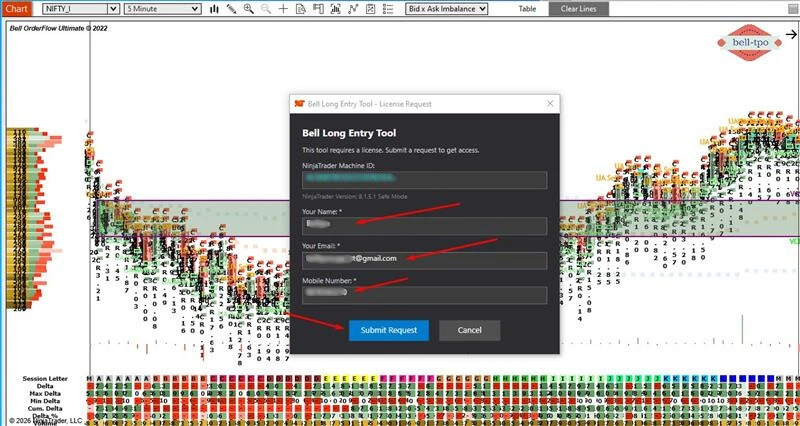
12. When the License Request window appears, enter the following details which you registered with BellTPO:
For Example:
Name
xyz
Email
xyz@gmail.com
Mobile
9876543210
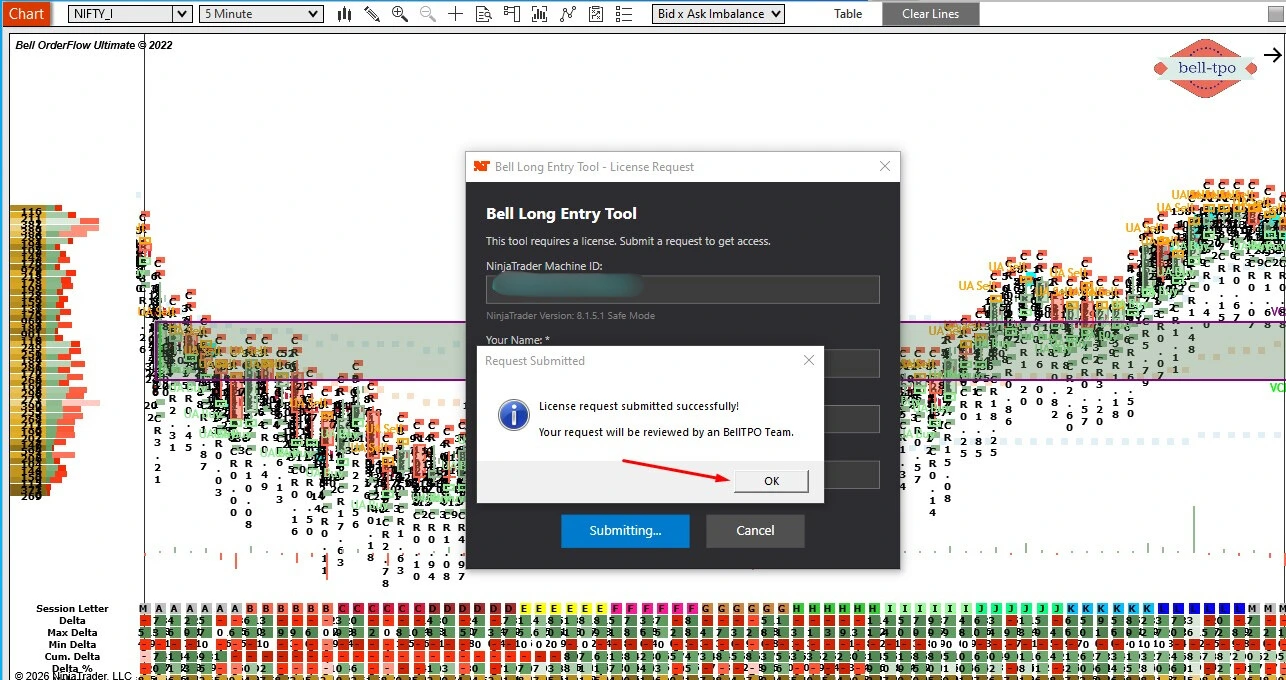
13. Click Submit Request and then click OK when the message appears: License request submitted successfully
14. Wait for license approval. Wait for the approval, it may take upto 24 Working hours to activate.